Collections group posts from across OutSized into a curated set. Use one to gather work around a topic, coordinate a collaborative project, or keep a private set for yourself.
Three ways to organize posts
- Bookmarks: every member has a private personal collection. Use the bookmark action on a post to add or remove it.
- Named collection: a public or private set that you create and curate. Public collections appear in the collection directory. Private collections are only available to their contributors.
- Series: an ordered literature structure for related stories. Use a series when reading order matters; use a collection for a general group of posts.
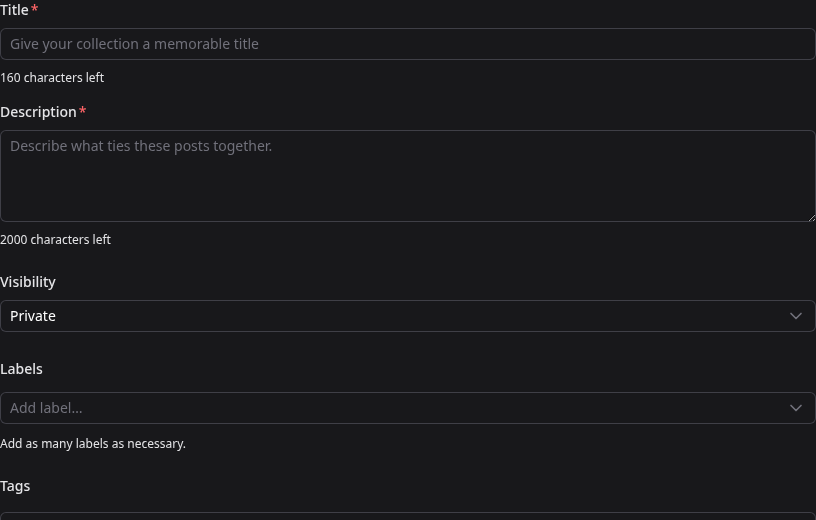
Create a named collection
- Open Collections and select Create collection.
- Add a clear title and description.
- Choose public or private visibility.
- Add labels and tags that describe the collection as a whole.
- Select your posts to include, then save a draft or submit the collection.
A collection may contain different post types. You can return to its editor later to add, remove, or reorder items.
Public, private, and collaborative collections
Public collections can be discovered and viewed by other members. Private collections stay available to their contributors. A collaborative collection can have multiple contributors, and contributors can help maintain its contents.
Collections have their own page and can receive likes, bookmarks, and comments separately from the posts inside them.
Add a post while browsing
Use a post's bookmark or collection action to save it. Your personal bookmark collection is the quickest private option. Named collections give you a reusable destination for curated sets.
Good collection habits
- Describe why the posts belong together, not just what each individual post contains.
- Only apply labels that describe a meaningful theme across the collection.
- Keep contributor access and item order up to date.
- Check the visibility before adding material intended to remain private.